
Quick Start
Connect an account, create a strategy, subscribe to it and send your first alert. Do it on paper first; the whole path takes about ten minutes.
On this page
1. Connect a broker account
Open Brokers in the dashboard and choose Connect broker. Pick your broker and follow its steps. Some brokers sign you in on their own site (OAuth), others ask for an API key and secret.
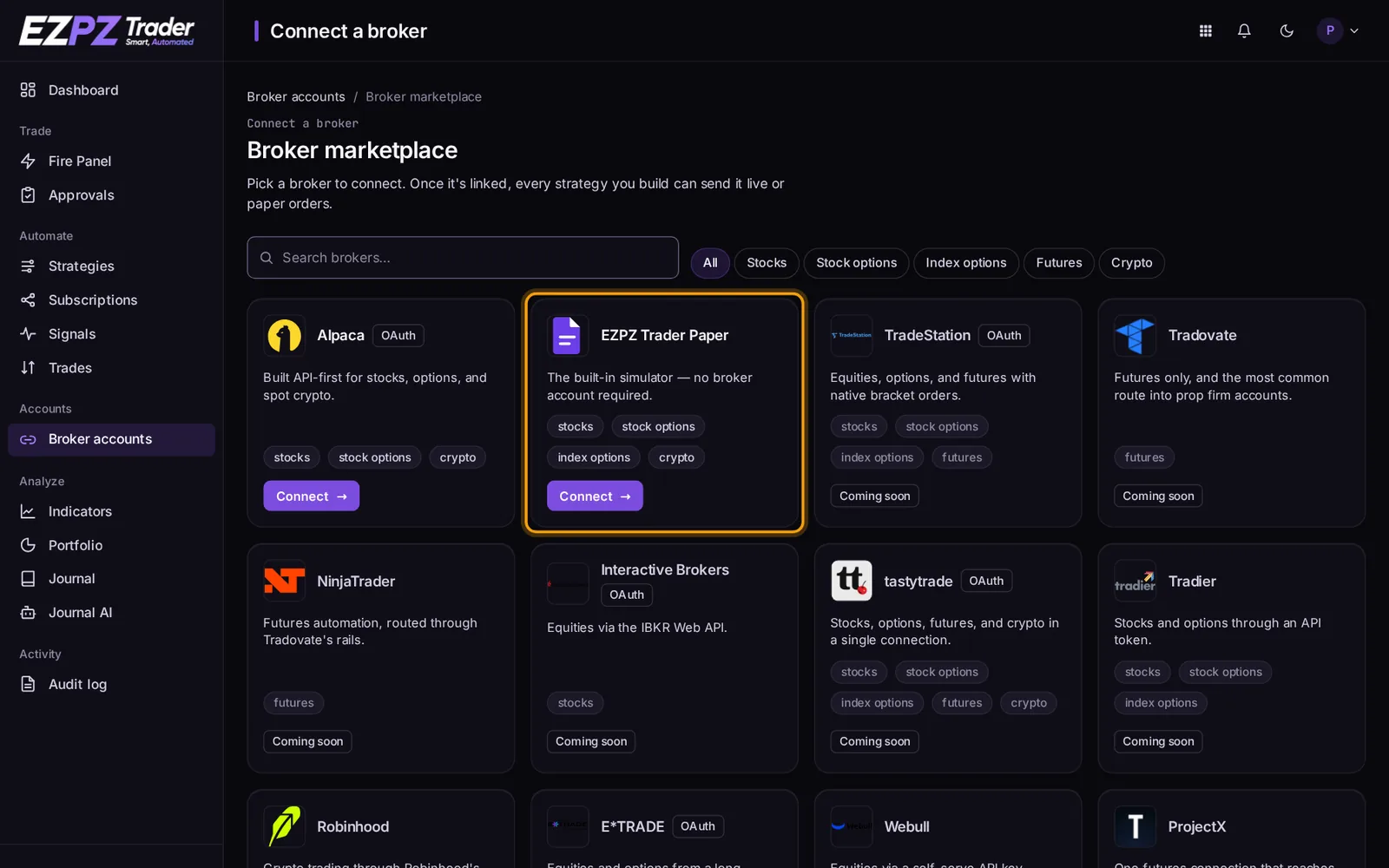
To test without a broker account, connect EZPZ Trader Paper, the built-in paper broker. It needs no sign-in. See Paper Trading.
2. Create a strategy
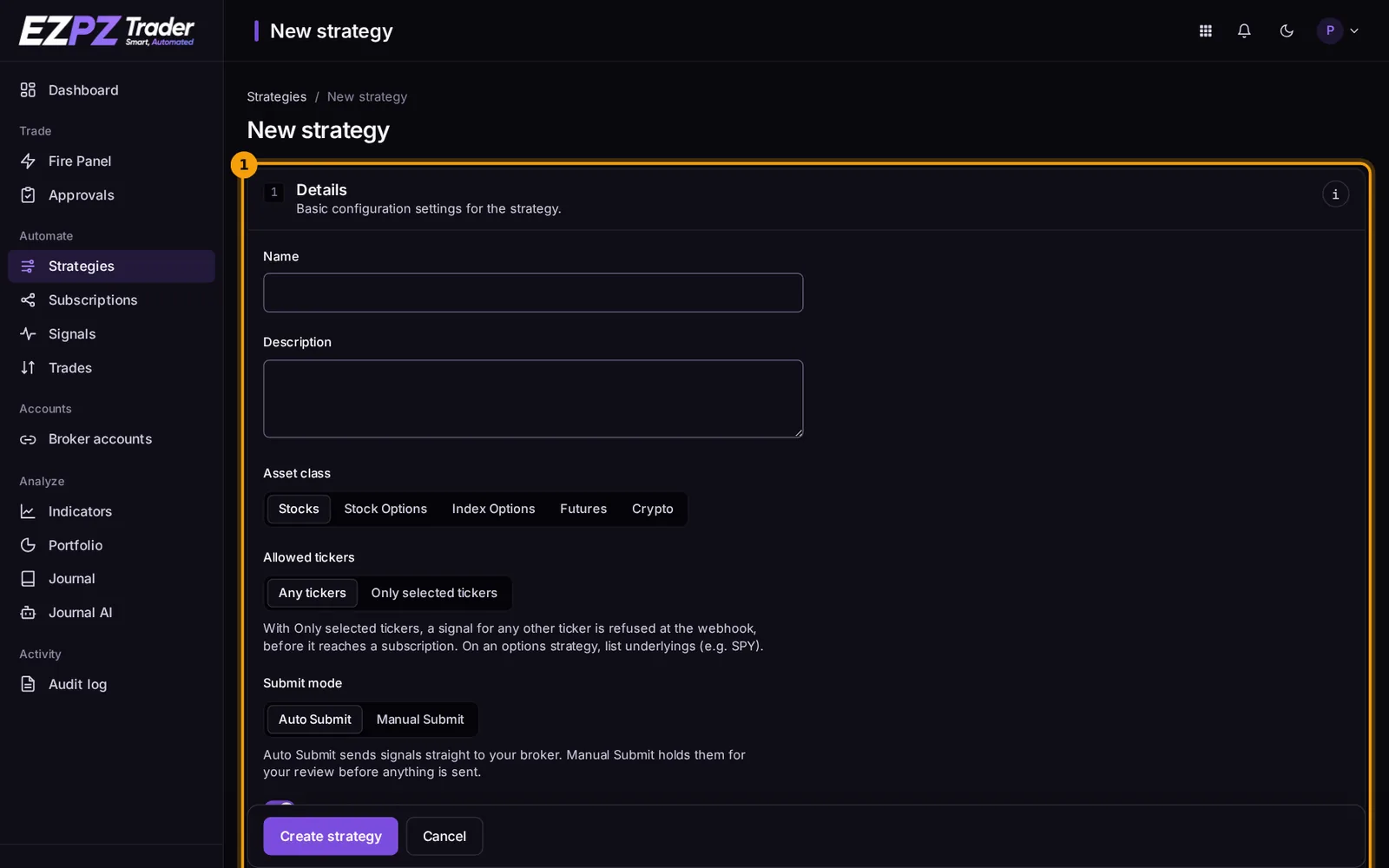
Open Strategies and choose New strategy. Give it a name and pick its asset class (stocks, stock options, index options, futures or crypto). A strategy only trades its own asset class.
Saving the strategy gives it a webhook URL. That URL is where your alerts are sent.
The URL is a password
The last part of the webhook URL is a secret. Anyone who has the full URL can send signals to your strategy. Don't share it or post it in screenshots. If it leaks, rotate it on the strategy page.
3. Subscribe an account to the strategy
On the strategy, add a subscription and choose the broker account it should trade. The subscription holds that account's settings: position size, order type, sides, trading windows, take profit and stop loss. See Subscriptions.
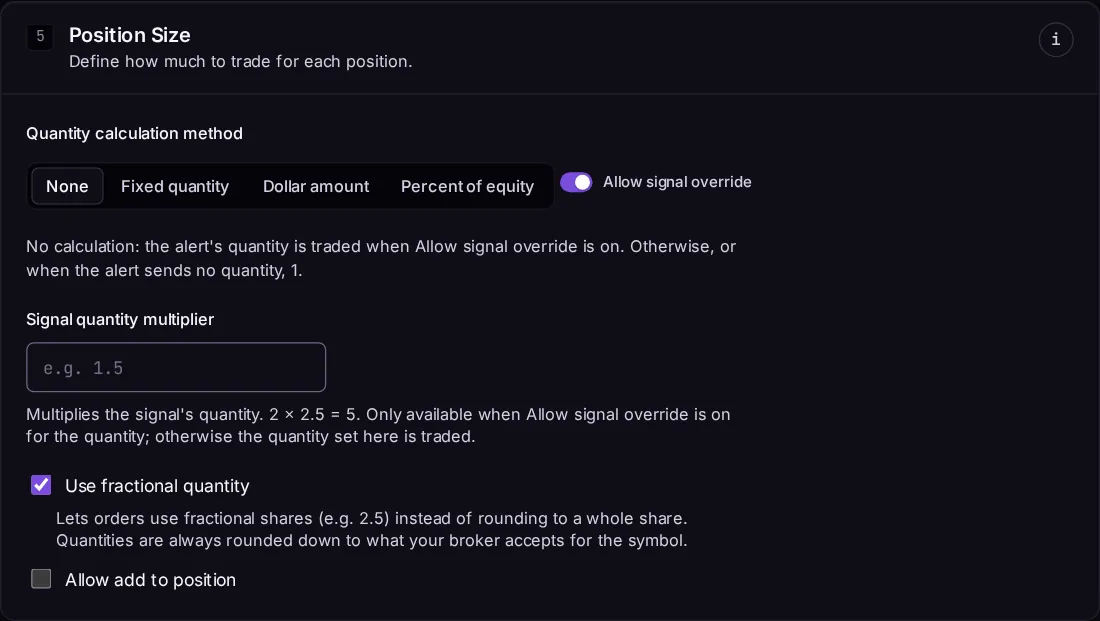
A new subscription starts with Auto Submit off, so its trades wait on the Approvals page for you to approve them. Turn Auto Submit on once you're happy with the results.
4. Send an alert
In TradingView, create an alert, paste your webhook URL into the alert's Webhook URL box, and use this as the Message:
{
    "ticker": "{{ticker}}",
    "action": "{{strategy.order.action}}",
    "sentiment": "{{strategy.market_position}}",
    "quantity": "{{strategy.order.contracts}}",
    "price": "{{close}}",
    "time": "{{timenow}}",
    "interval": "{{interval}}"
}
That message is for a Pine Script strategy. For an indicator, see TradingView.
You can also test without TradingView, using cURL or the Fire Panel.
5. Check the result
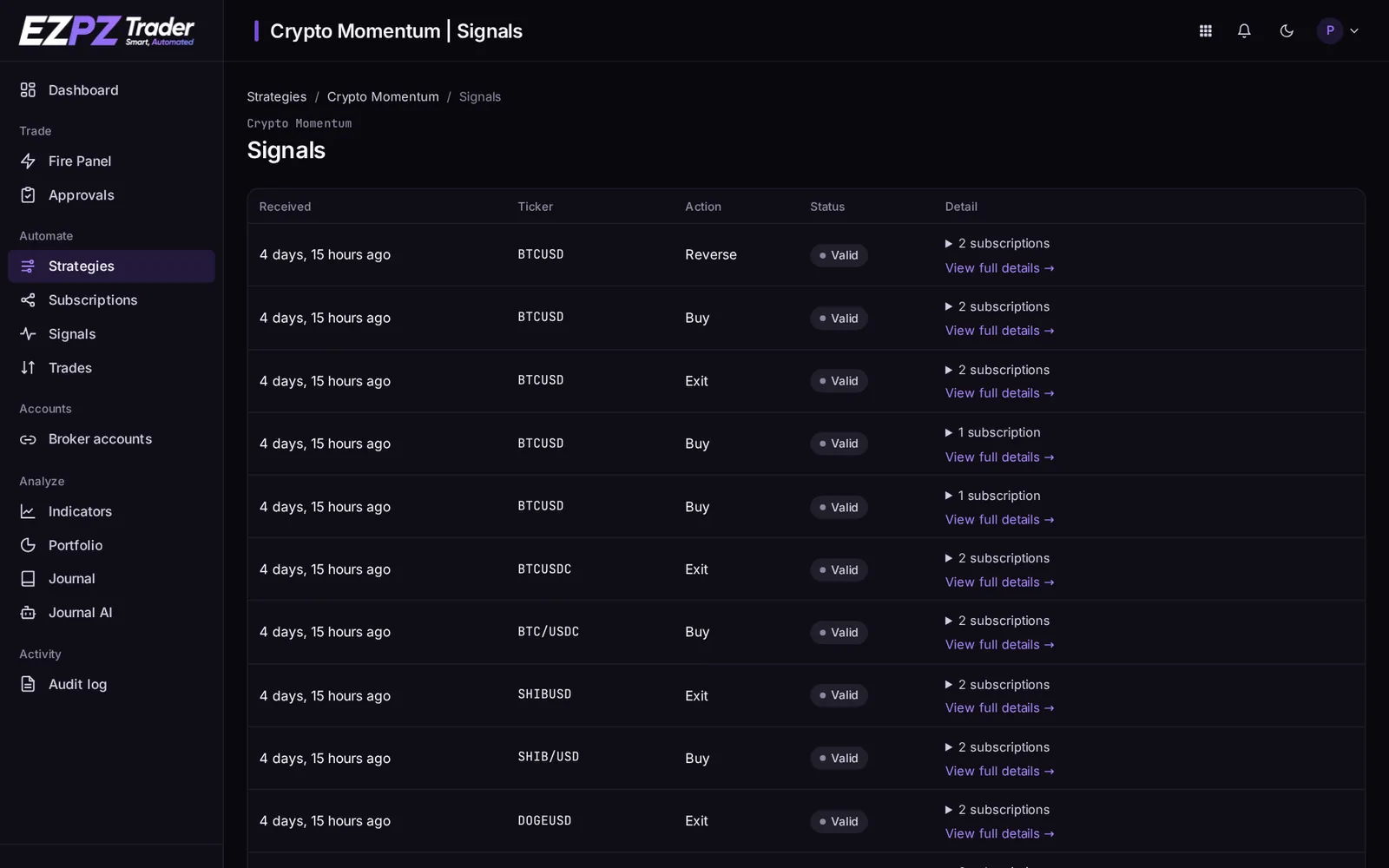
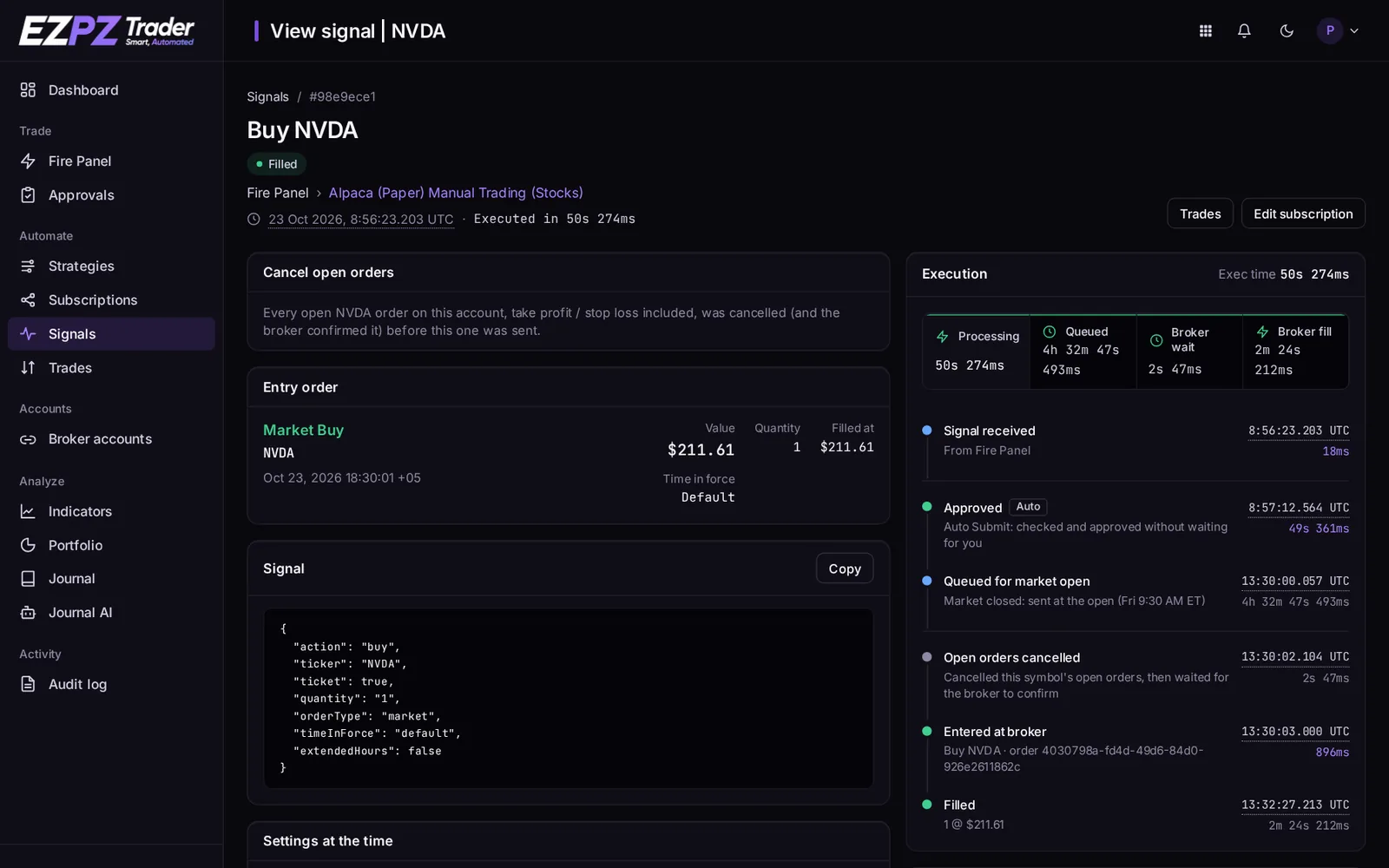
Open the strategy's Signals. Every alert is listed, including ones that were refused. Open a signal to see each subscription's result: the orders sent, the fill price, the time each step took, or the reason it was skipped. If something didn't trade, Why a Trade Was Skipped explains every reason.
↑ ↓ to move · Enter to open · Esc to close