
How to use the Trade Journal: every page, and a 10-minute review after each session
You don't have to type your trades into the Trade Journal. Every order EZPZ Trader fills is already there, matched from entry to exit with its P&L. What's left is the part only you can do: say why you took a trade, group trades by setup and look for what keeps working. This post walks through each page of the Journal on one real morning of paper trades, then the 10-minute review we did afterwards.
The trades we used
All screens below come from the EZPZ Trader demo account, trading on the built-in paper account. On Thursday, Oct 22, 2026, its four strategies were sent signals between 8:48 and 9:36 a.m. ET and filled at live prices: 37 closed trades in SPY, QQQ, AAPL, BTC/USD, ETH/USD and SOL/USD, for a total P&L of +$10.90. The notes, tags, playbooks and day entry were written afterwards on the demo account, the way you would write them on yours.
37
closed trades, recorded with no typing
3
playbooks covering 35 of the 37 trades
+$10.90
total P&L on the day, Oct 22, 2026
The Journal, tab by tab
Interactive walkthrough
The Journal, tab by tab
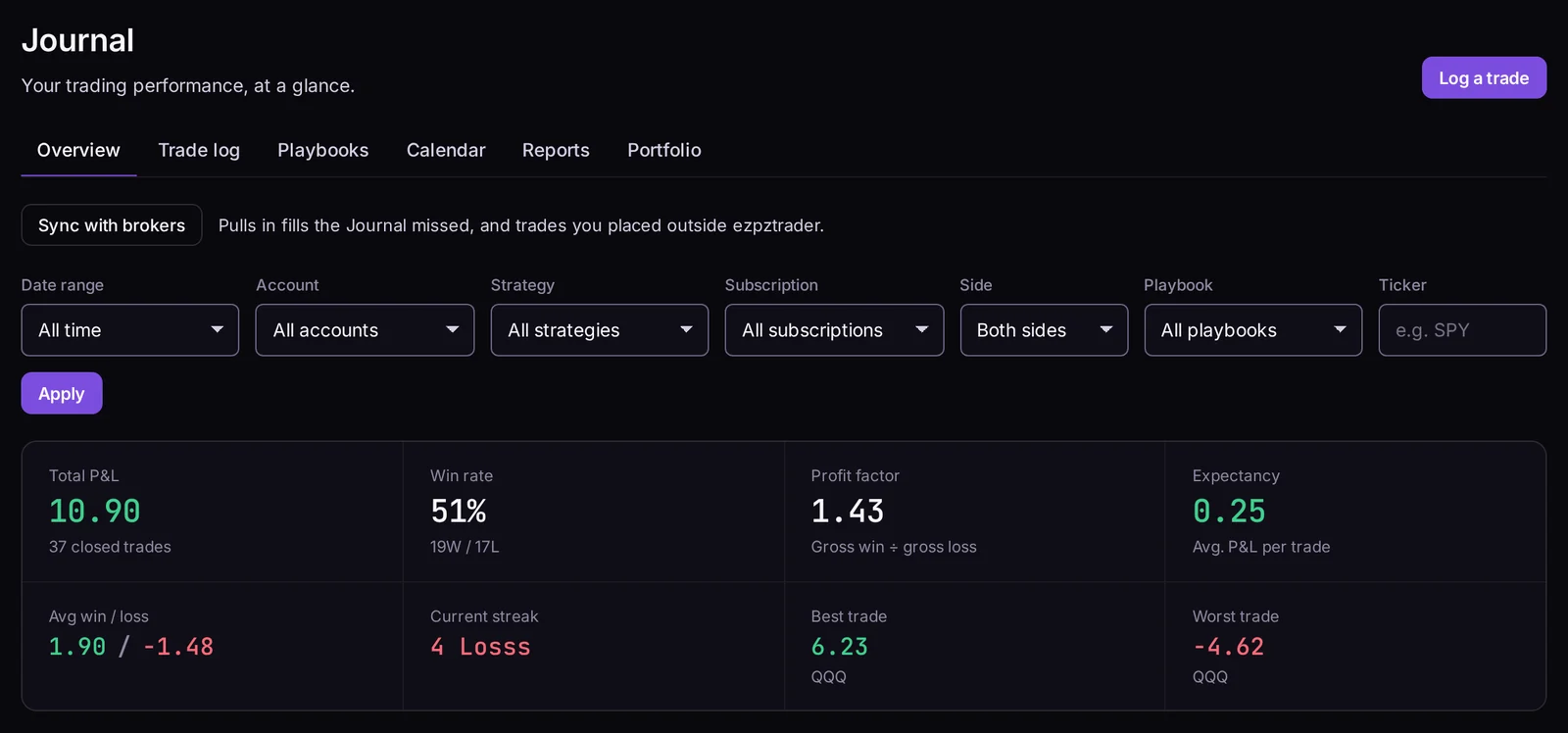
Overview
Journal → Overview is the summary for any slice of your trades. Filter by date range, account, strategy, subscription, side, playbook or ticker. The cards show total P&L, win rate, profit factor, expectancy, average win and loss, your current streak and the best and worst trade. On the demo account that's +$10.90 from 37 closed trades, a 51% win rate and a profit factor of 1.43. Below the cards come the equity curve, daily P&L, trade outcomes and recent trades. How each of these numbers is calculated is in our guide to win rate, profit factor and expectancy.
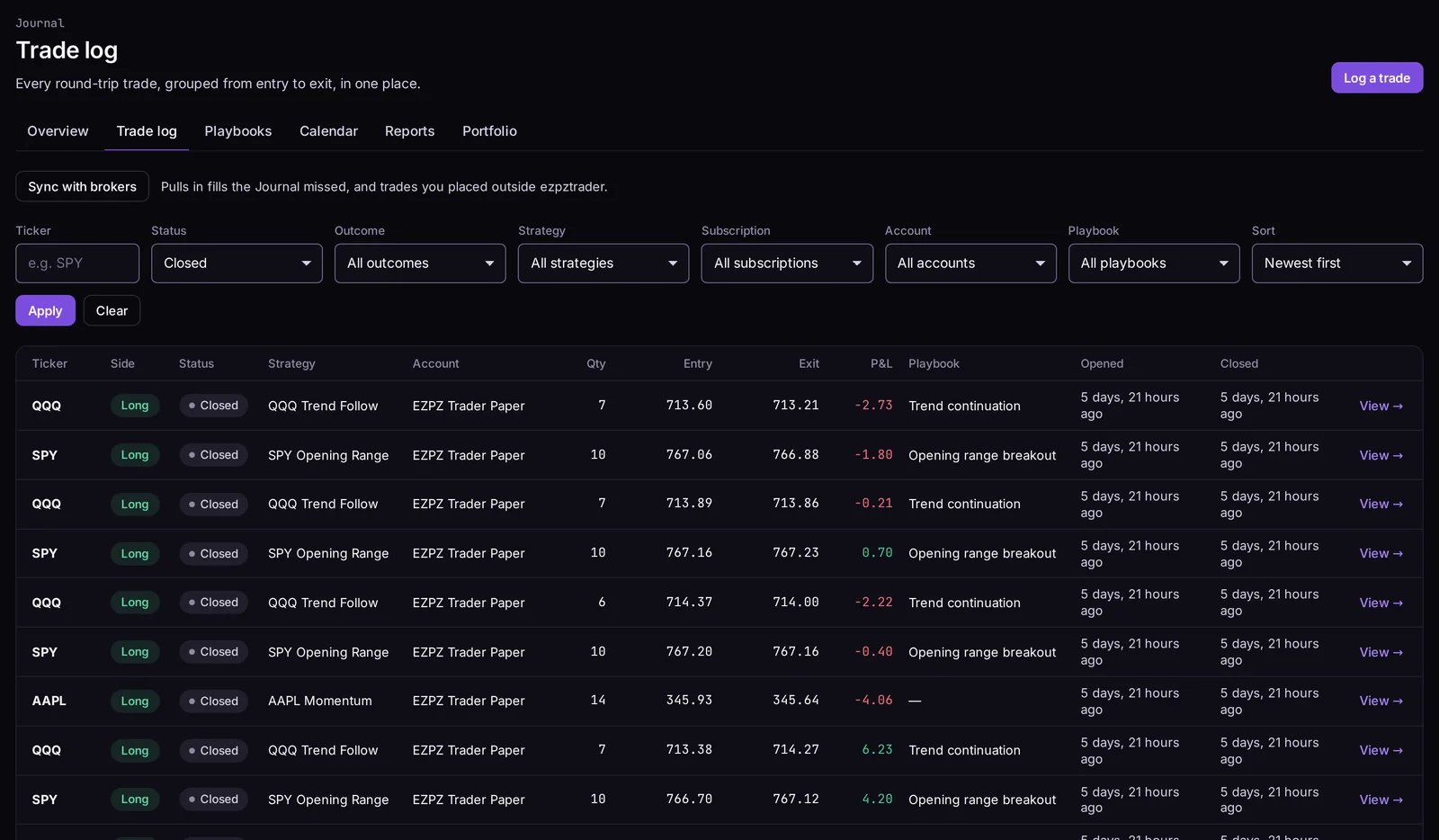
Trade log
Trade log lists every round trip, from entry to exit, newest first, 25 to a page. Each row shows the strategy, account, quantity, entry, exit, P&L and playbook. Filter by ticker, status (open or closed), outcome (wins or losses), strategy, subscription, account or playbook. Click View to open a trade.
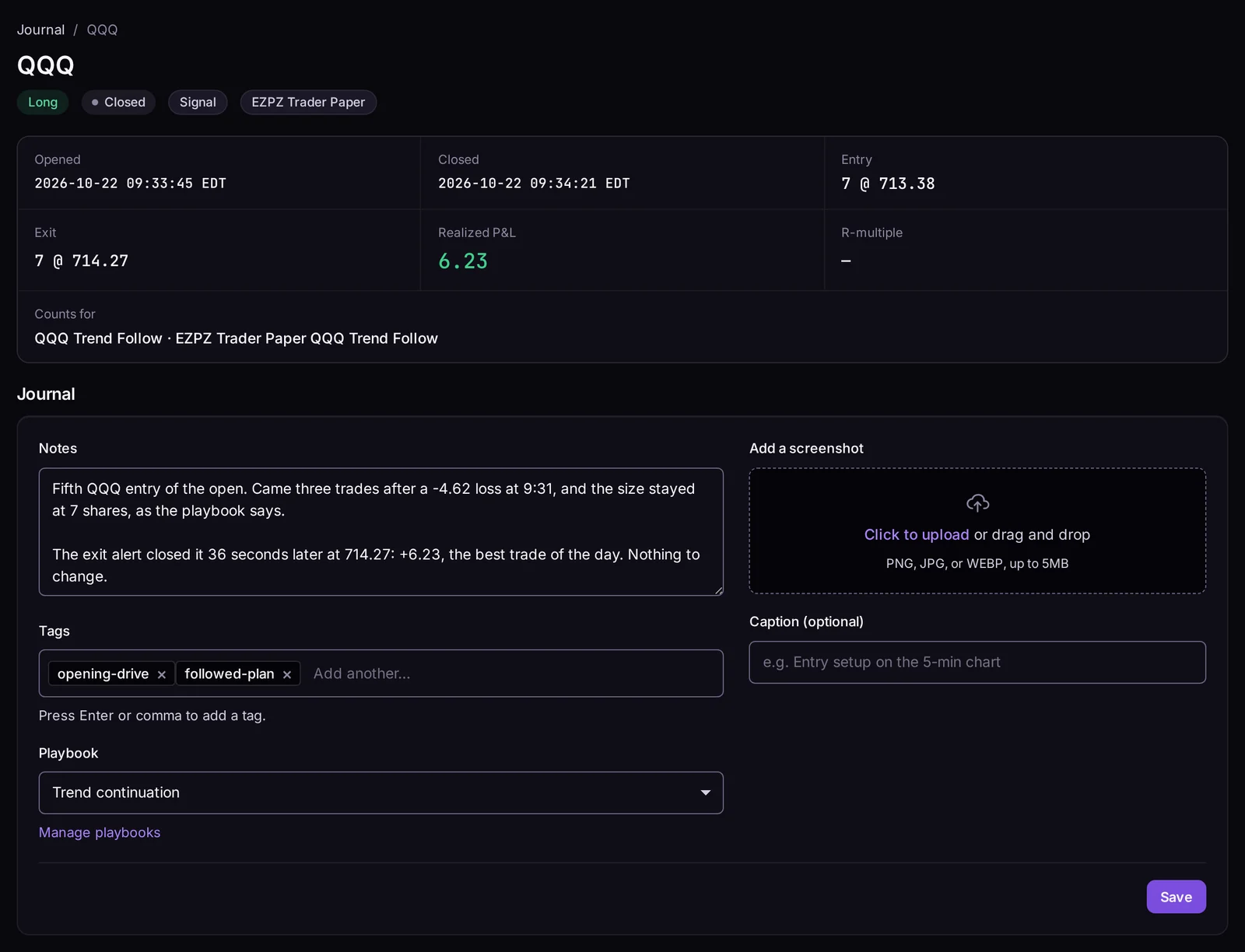
Trade page
Each trade has its own page. At the top are the facts: opened and closed times to the second, entry and exit, realized P&L and the subscription it counts for. This QQQ trade bought 7 shares at $713.38 at 9:33:45 a.m. and sold them at $714.27 36 seconds later, for +$6.23, the best trade of the day. Below is the Journal section: notes, tags, playbook and a screenshot upload. One Save button saves all of them.
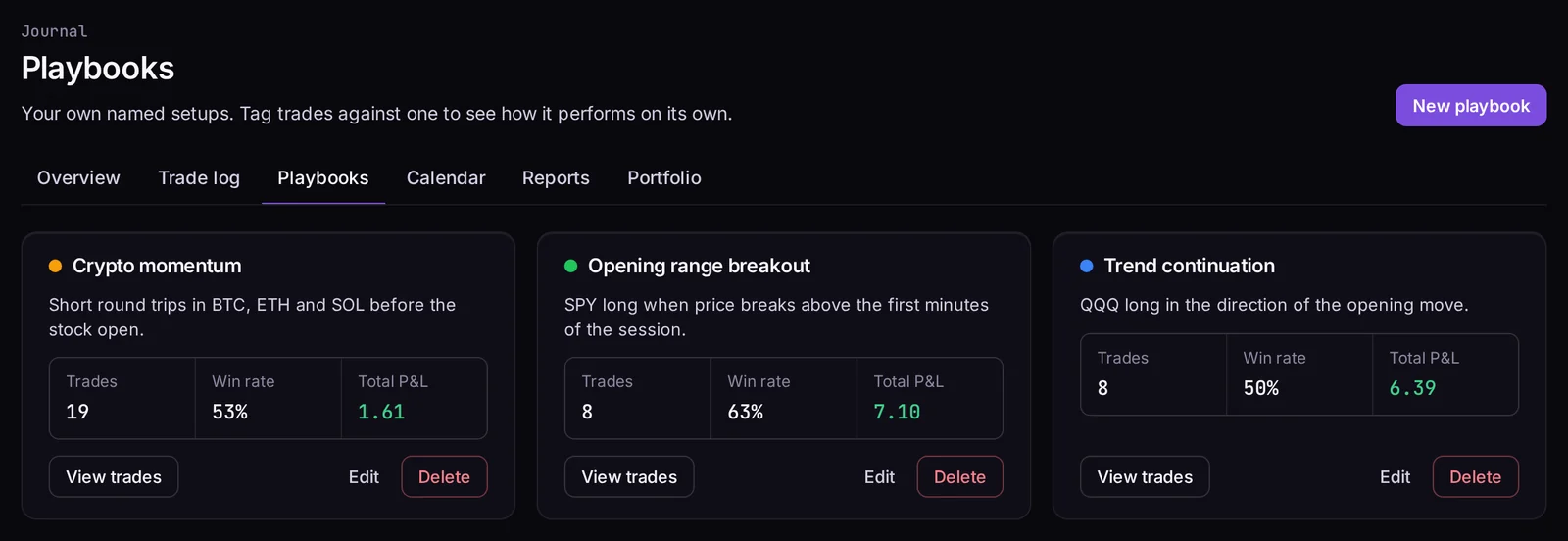
Playbooks
A playbook is a setup you trade, with your own rules. The demo account has three: Opening range breakout (8 trades, 63% win rate, +$7.10), Trend continuation (8 trades, 50%, +$6.39) and Crypto momentum (19 trades, 53%, +$1.61). The two AAPL trades have no playbook, so they're in none of the cards. That's why the cards add up to $15.10 and not the day's $10.90.
Calendar
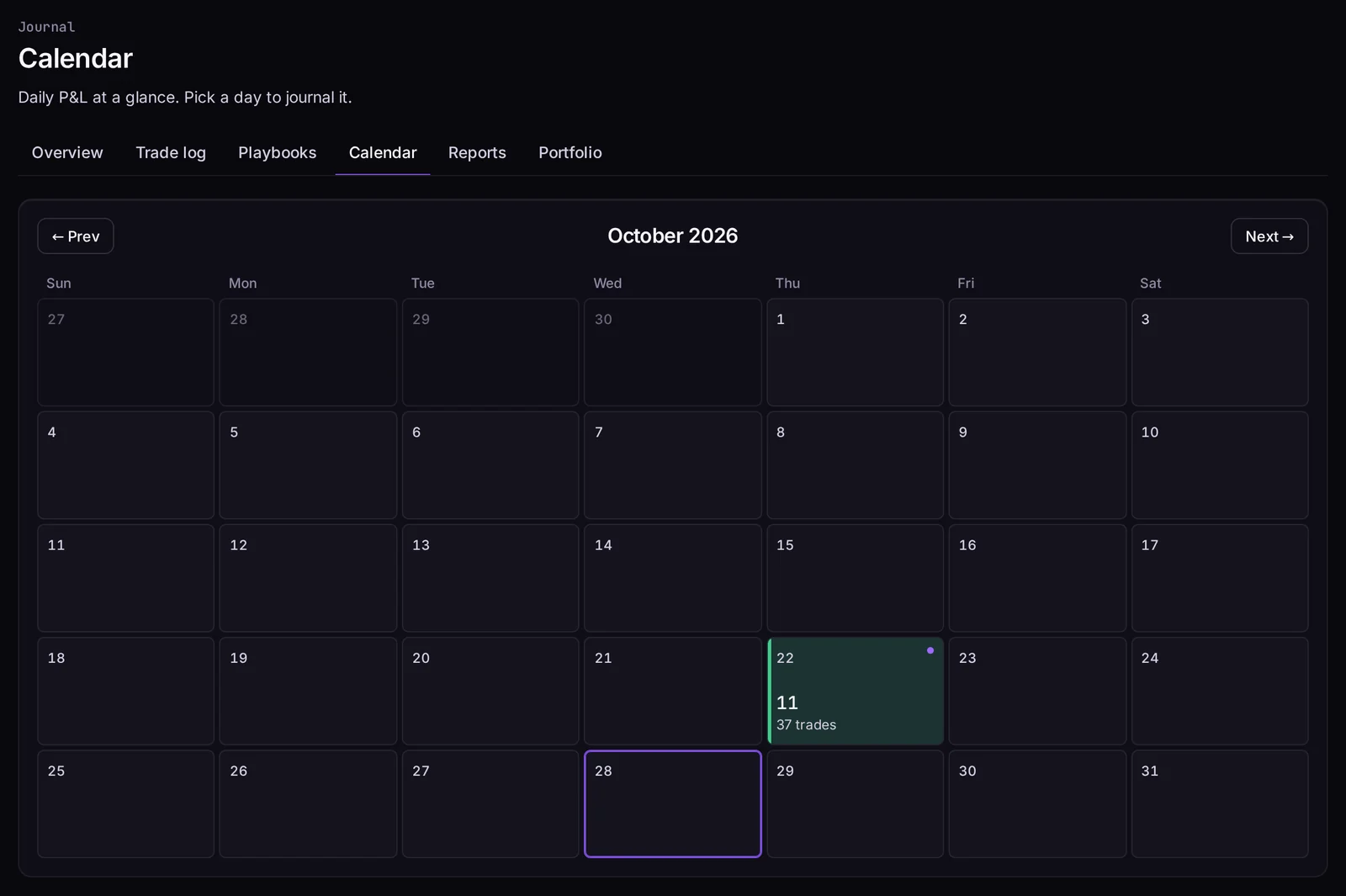
Calendar shows a month at a time. A day with closed trades shows its P&L and trade count, green for a gain and red for a loss. Oct 22 shows 11 (the $10.90, rounded) and 37 trades. The small dot in the corner means the day has a Daily journal entry. Click any day to open it.
Reports
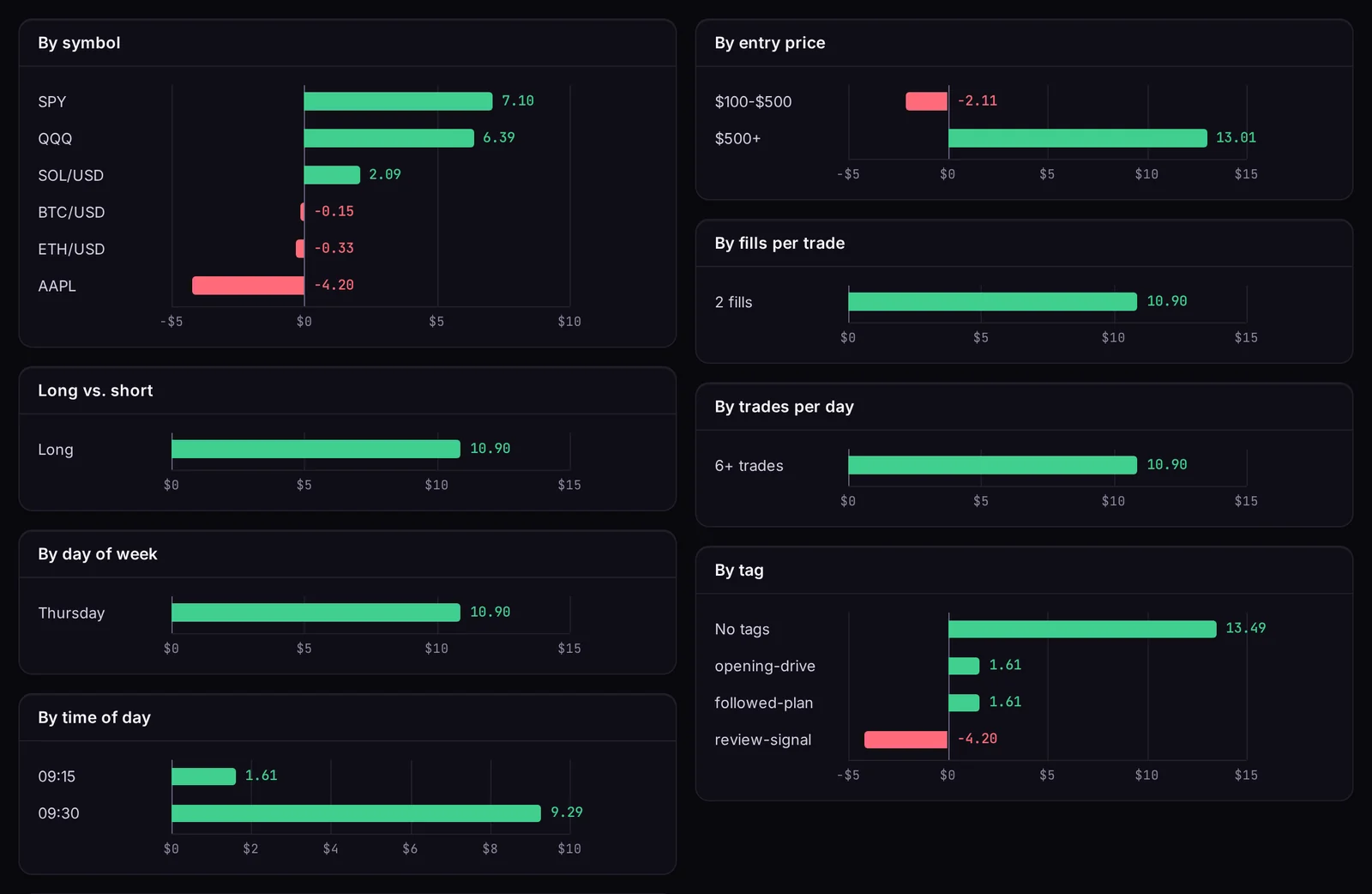
Reports starts with tables By strategy and By subscription, then bar charts by symbol, long vs. short, day of week, time of day, duration, entry price, fills per trade, trades per day, tag, playbook and account. On the demo account, By time of day shows the crypto trades (+$1.61) in the 9:15 slot and the stock trades (+$9.29) in the 9:30 slot. Time of day uses 15-minute slots, by when each trade closed.
Journal AI
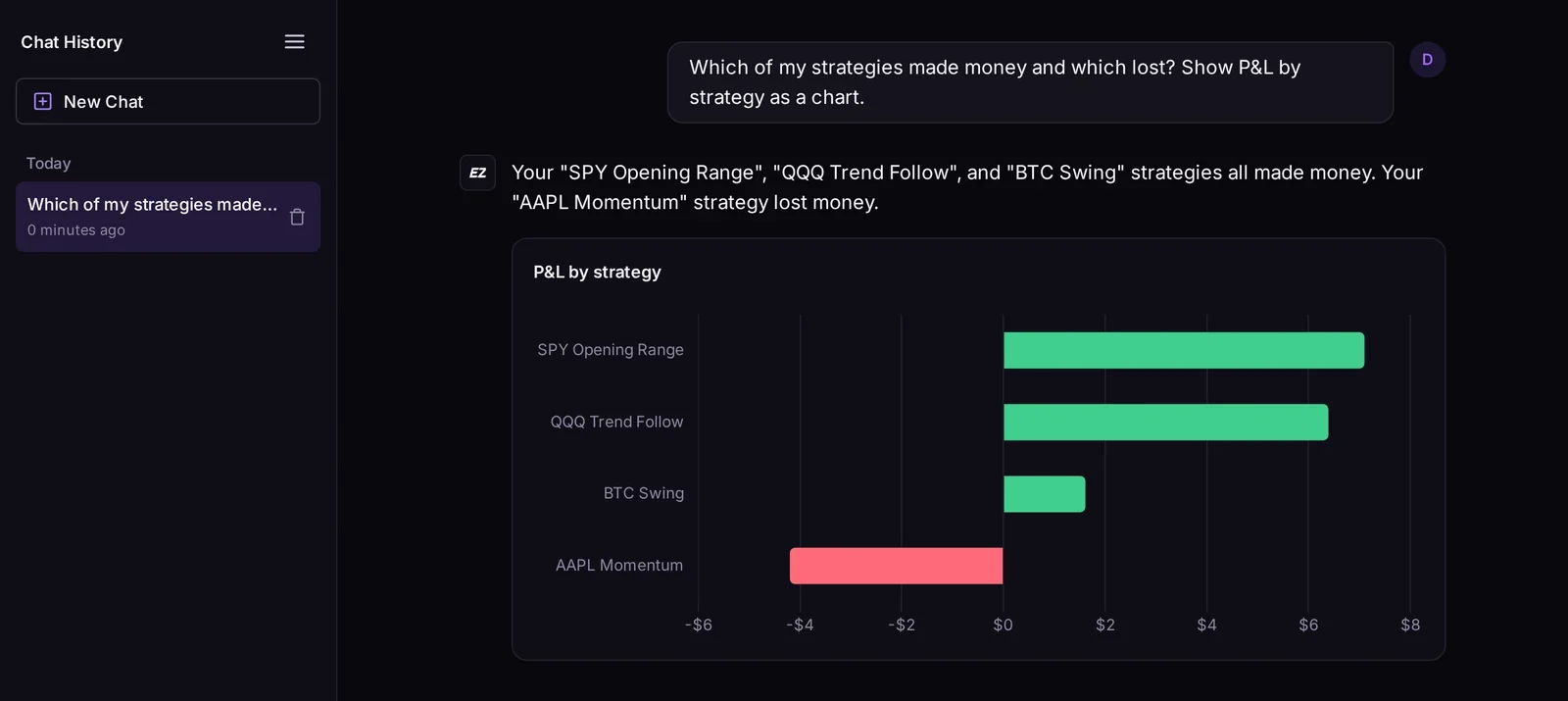
Journal AI (in the sidebar, under Analyze) answers questions about your own trades. We asked which strategies made money. It named SPY Opening Range, QQQ Trend Follow and BTC Swing as winners and AAPL Momentum as the loser, and drew the chart. The numbers in its charts are worked out by the app from your trades, not written by the AI, so they match Reports exactly: $7.10, $6.39, $1.61 and −$4.20.
How trades get into the Journal
There are three ways in. The badge at the top of each trade page shows which one recorded it.
| Badge | How it gets there | What you can change |
|---|---|---|
| Signal | Recorded automatically when an order fills: strategy alerts, Fire Panel orders, the Exit button and stop loss or take profit fills. | Notes, tags, playbook, screenshots. The fills themselves can't be edited or deleted. |
| Imported | Sync with brokers reads your broker's trade history and adds trades you placed outside EZPZ Trader. | Notes, tags, playbook, screenshots. The trade can be deleted. |
| Manual | You add it with Log a trade: ticker, side, asset type, quantities, prices and times. | Everything. It can be edited or deleted. |
A few things worth knowing about Sync with brokers:
- It also fills gaps: if a fill reached your broker but the Journal missed it, Sync records it.
- It goes back as far as your broker's history does. That's a broker limit, and it's short for some brokers, so sync regularly.
- If part of a position was bought before the broker's history starts, its entry price is unknown. The trade page says so and asks you for that price. Until you enter it, the trade has no P&L, so no number is guessed.
- Paper accounts never need it. Paper fills are recorded as they happen.
Options and futures trades count the contract multiplier, so a $1.00 move on one option contract is $100 of P&L.
Our 10-minute review, step by step
This is the routine we ran on the demo account after the session. It works the same on a live account.
Start with the day, not the trades
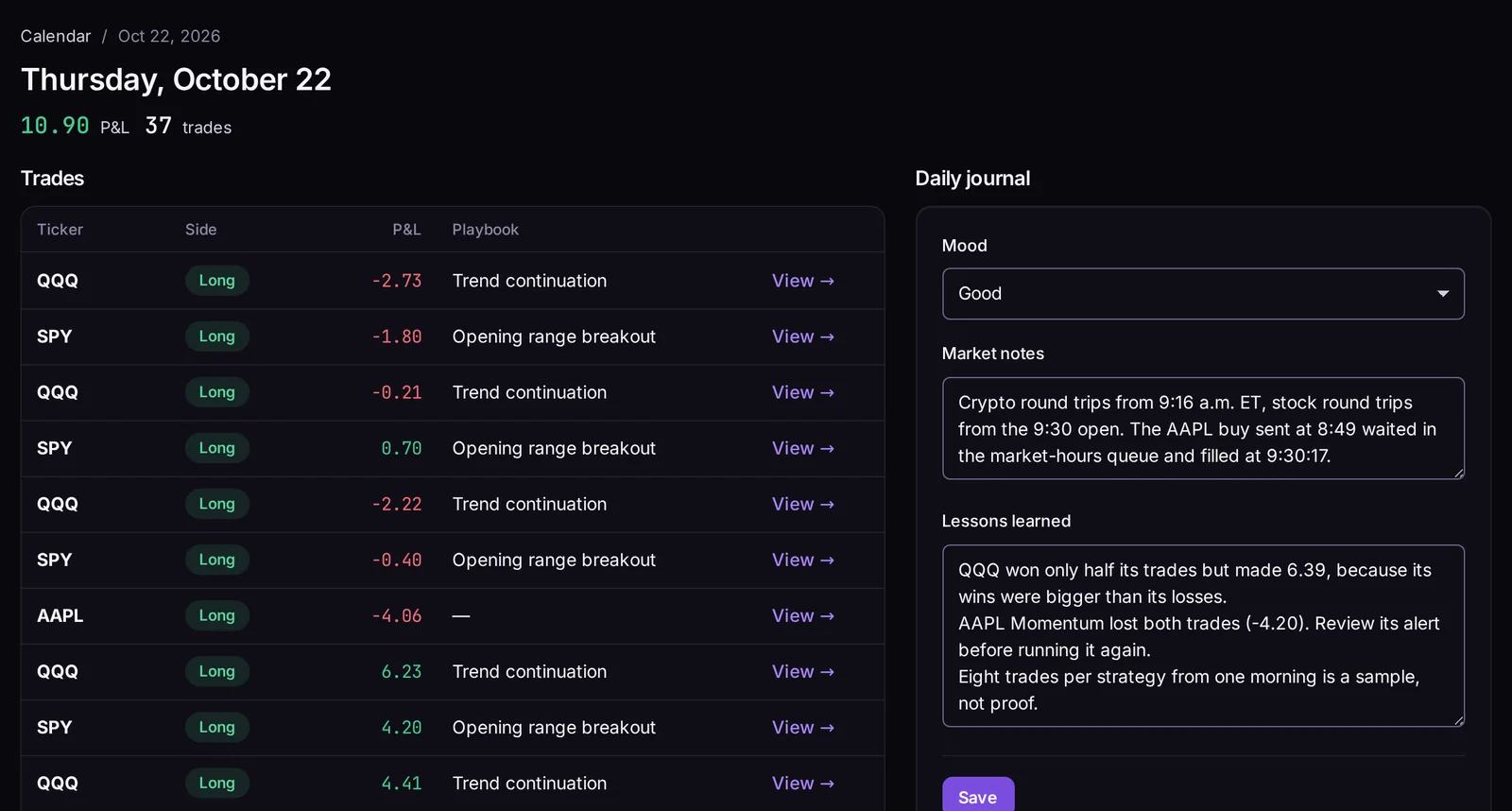
Open Calendar and click today. The day page lists every trade that closed that day, with its P&L and playbook, and has the Daily journal on the right. Write it before you look at single trades, while the session is still fresh:
- Mood: Great, Good, Neutral, Bad or Terrible. Over a few weeks, you can line it up against your results.
- Market notes: what the session looked like. Ours notes that the AAPL buy sent at 8:49 waited in the market-hours queue and filled at 9:30:17.
- Lessons learned: one to three lines you would want to read again next week.
Open the trades that stand out
Don't journal all 37. Open the best trade, the worst trade and anything that looks odd. On Oct 22 that was the QQQ +$6.23 (the best), the QQQ −$4.62 at 9:31 (the worst) and AAPL Momentum, which lost both of its trades.
Write what you did and why, not just the result. The note on the worst trade says it was "taken by the rules". That's the useful part: a loss you'd take again is a cost of the strategy, not a mistake.
Tag what you did, then pick the playbook
Tags are free text: type one and press Enter or a comma. Use the same few tags every time so they add up in Reports. We used
followed-planandopening-driveon the two QQQ trades, andreview-signalon both AAPL trades to mark a strategy to check.Then choose the Playbook. If the setup is new, Manage playbooks → New playbook: a name, a short description, your rules (one per line) and a color.
Attach the chart
Under Add a screenshot, upload a PNG, JPG or WEBP up to 5 MB, with an optional caption such as "Entry setup on the 5-min chart". You can add more than one per trade. Screenshots are private: they're stored outside the public site and shown only to you and your team members.
Check the week in Reports, then ask Journal AI
Once a week, open Reports and look at By playbook and By tag next to By strategy. Then ask Journal AI a question or two, such as "Which symbol has lost me the most?" or "Show my P&L by playbook as a chart."
Playbooks or strategies?
A strategy is how a signal reaches your account: one webhook URL and its subscriptions. A playbook is how you name a setup. On the demo account each playbook happens to match one strategy, so By playbook in Reports shows the same numbers as By strategy.
Playbooks earn their place when the two don't line up:
- One setup, several strategies. Opening-range alerts on SPY, QQQ and IWM can be three strategies but one playbook, so you see how the setup does as a whole.
- Trades with no strategy. Trades you log by hand and trades Sync imports have no strategy, but they can have a playbook.
- Setups inside one strategy. If a script fires on two different patterns, a playbook per pattern shows which one pays.
In Reports, a trade counts under every tag it has, so the By tag rows can add up to more than your total. Each trade has only one playbook, so the By playbook rows add up to your total, with a No playbook row for the rest.
What Journal AI can and can't see
Journal AI reads your overall Journal numbers, P&L by symbol, strategy and subscription, and your 20 most recent closed trades, including their notes, tags and playbooks. That's why notes are worth writing: "Why did my last few QQQ trades lose?" gets a better answer when those trades have notes.
- Charts come from your data. Ask for a chart and the app draws it from your trades, so the numbers always match Reports.
- It reviews, it doesn't advise. It won't tell you what to buy or sell next.
- It only sees your account. Team members who ask see the account owner's trades, the same as the rest of the Journal.
Past conversations are kept under Chat History, so you can come back to a question. The chart is drawn when the answer arrives. If you reopen the conversation later, ask for it again.
Who can see your Journal
Team members with Full access can write notes, tag trades, manage playbooks and run Sync, the same as you. View-only members can read every Journal page but can't change notes, tags, playbooks, day entries or screenshots. Nobody outside your account sees your Journal, and screenshots are only served after a login check.
Frequently asked questions
Do I have to enter my trades by hand?
No. Trades from your strategies and Fire Panel are recorded as they fill. Use Sync with brokers for trades you placed elsewhere, and Log a trade only for a trade your broker's history can't give you.
Can I delete or edit a trade?
Trades you logged by hand can be edited and deleted. Imported trades can be deleted. Trades recorded from your own orders can't be changed, because they're the record of what was actually sent and filled. You can always add notes, tags, a playbook and screenshots to them.
Are paper trades in the Journal?
Yes, like the 37 trades in this post. Use the Account filter to look at paper and live separately.
Why is a trade missing?
If the order went through EZPZ Trader but the trade isn't there, click Sync with brokers: it records fills the Journal missed. If you placed the trade somewhere else, Sync imports it as long as it's still in your broker's history.
Why is the R-multiple blank?
R-multiple compares the P&L with the risk to your stop loss. When the Journal doesn't know a stop-loss distance for the trade, it's left blank instead of guessed.
Can Journal AI place trades?
No. It only reads your Journal and answers questions about it.