
Your first TradingView alert to a live order, step by step
A TradingView alert turns into a broker order in four moves. A strategy gives you a webhook URL. A subscription connects that strategy to a broker account. The alert sends a short JSON message to the URL. The signal log then shows what we did with it. This guide walks through each step and gives you the exact message to paste.
Interactive walkthrough
Follow one signal
Webhook
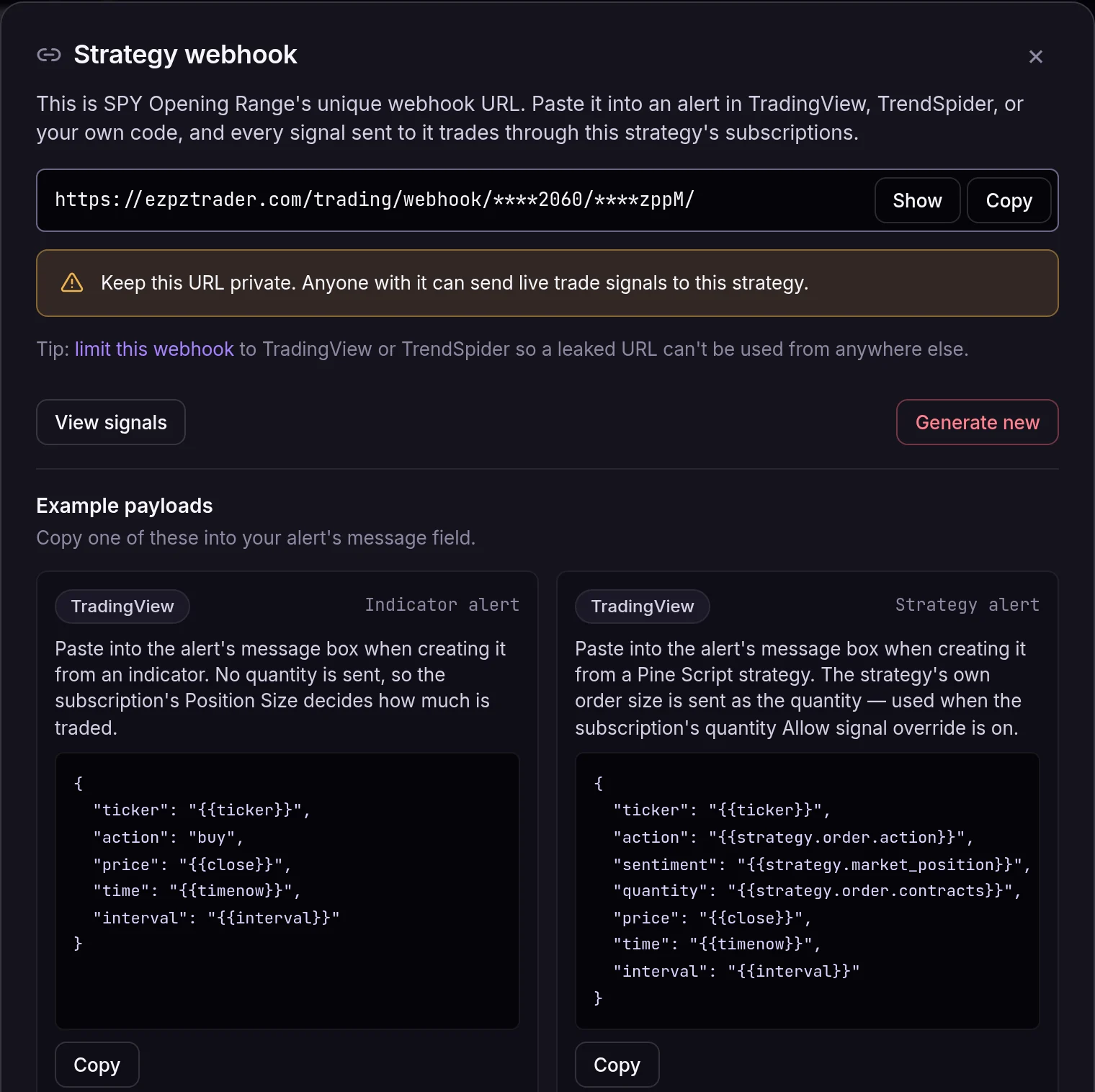
Every strategy has one webhook URL. This is the SPY Opening Range strategy on the EZPZ Trader demo account. Click Webhook on the strategy page to see the URL, copy it, and copy a ready-made message for an indicator or a strategy alert.
Subscription
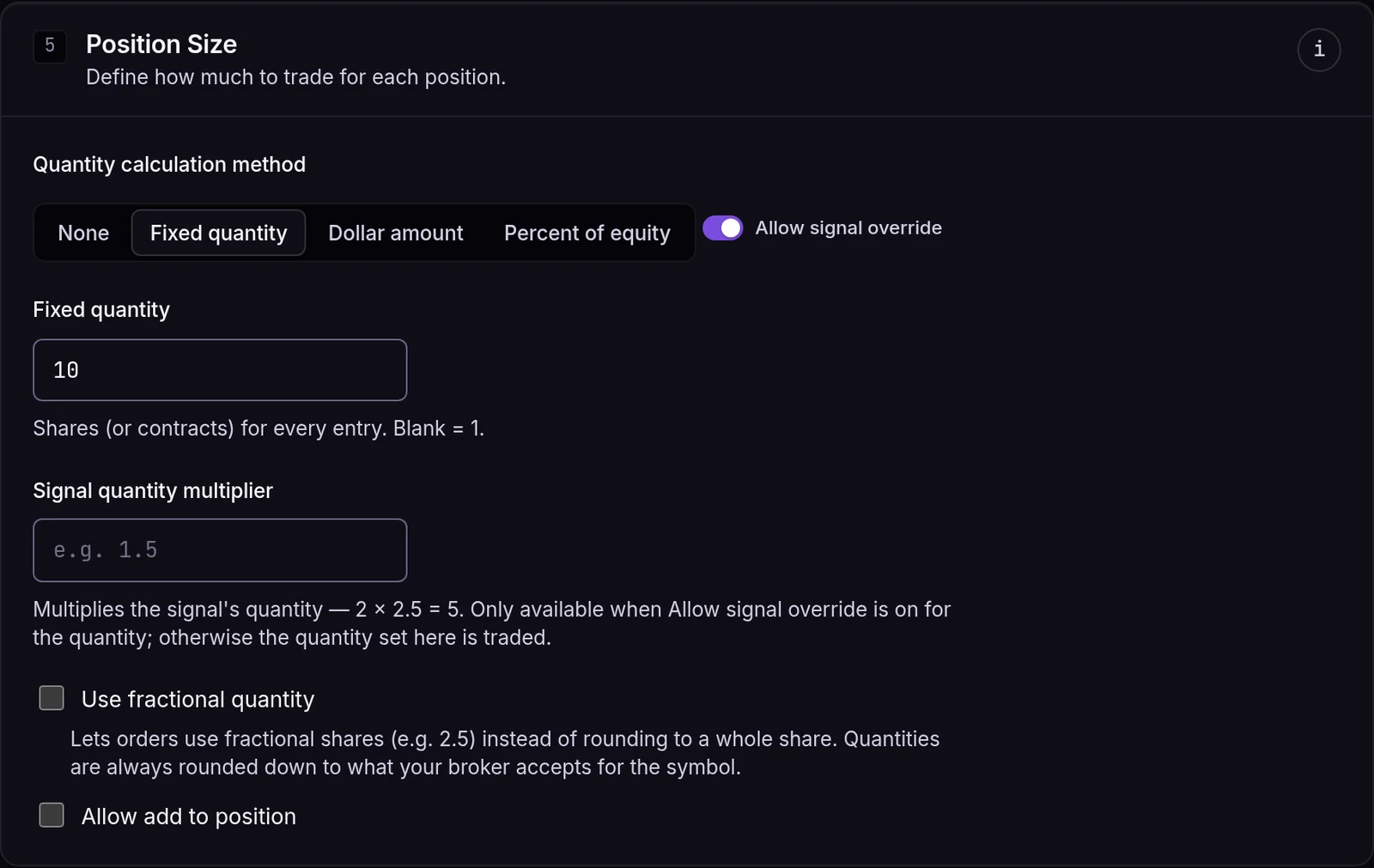
The subscription connects the strategy to the built-in EZPZ Trader Paper account. Its Position Size is Fixed quantity, 10. The signal below sent no quantity, so each entry traded 10 shares. The demo subscription is switched to Auto Submit, so orders went out without waiting for approval.
Signals
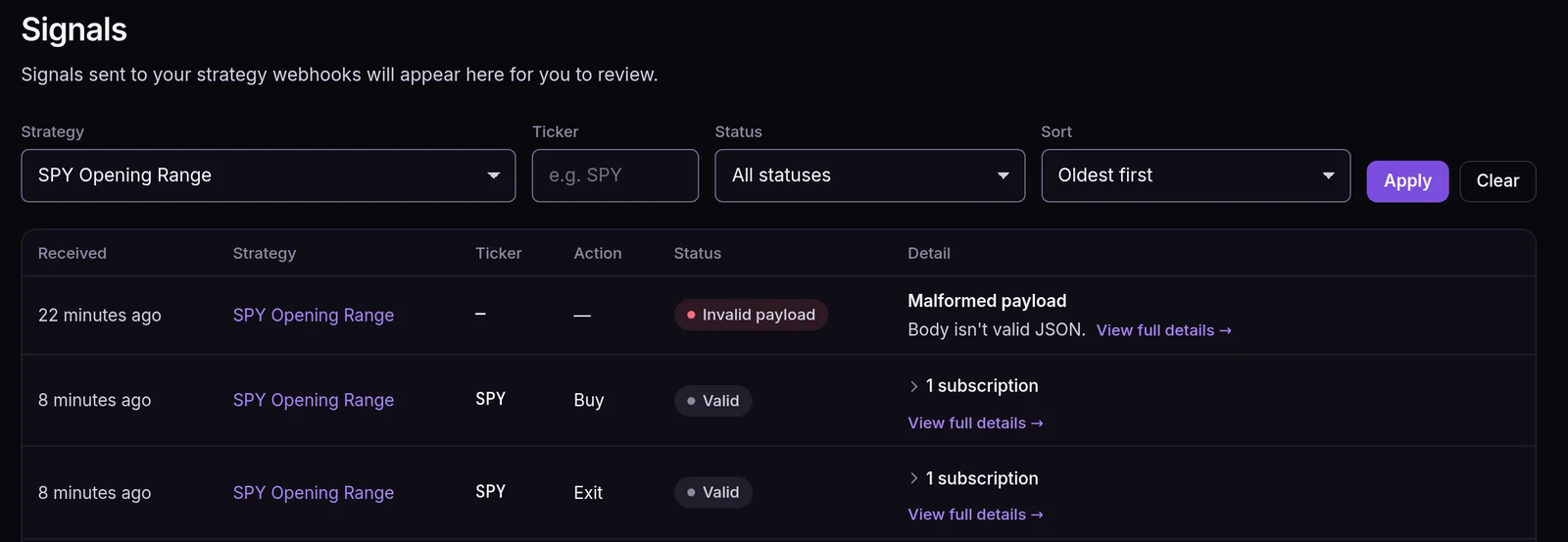
Every request to a strategy's webhook URL lands on the Signals page, even a bad one. The first row is a message that wasn't valid JSON, refused as Malformed payload. About 14 minutes later, at 9:30:17 a.m. ET on Oct 22, 2026, a valid Buy SPY arrived, followed by an Exit about 31 seconds later.
Signal detail
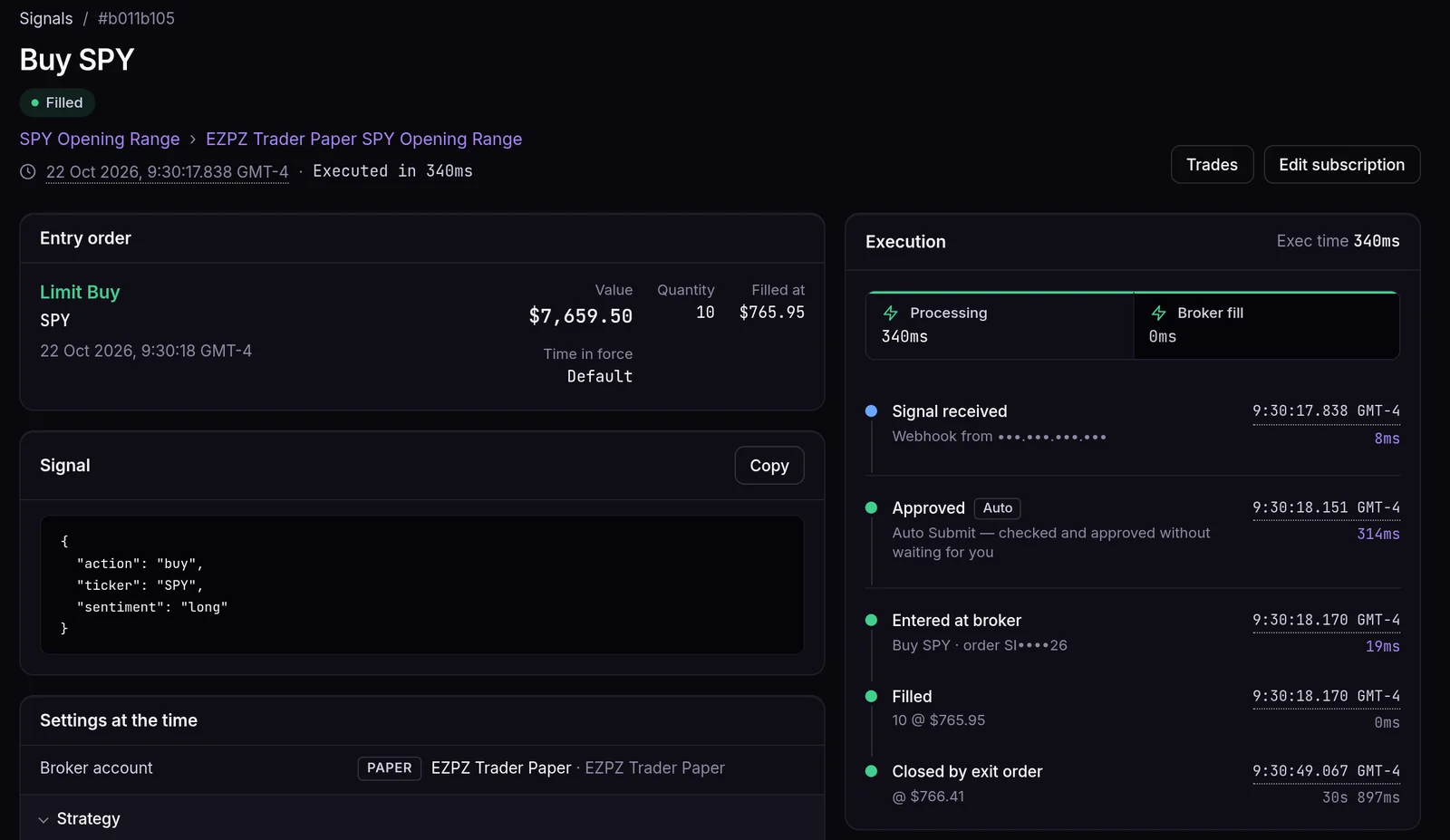
The message was {"action": "buy", "ticker": "SPY", "sentiment": "long"}, received at 9:30:17.838. The timeline shows each step: received in 8 ms, checked and approved by Auto Submit in 314 ms, entered at the broker in 19 ms. The paper account filled 10 shares at $765.95 ($7,659.50), 340 ms after the signal arrived.
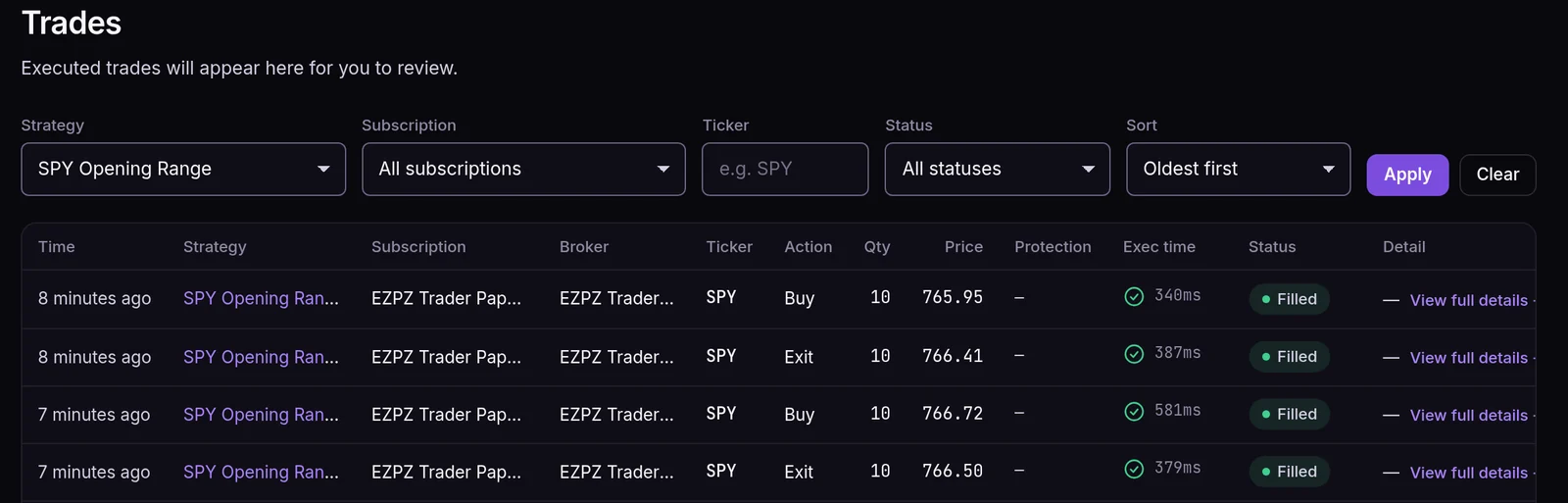
Trades
The Trades page lists every order with its execution time. The buy shows 10 SPY at 765.95 in 340 ms. The exit signal at 9:30:48 sold the 10 shares at 766.41 in 387 ms.
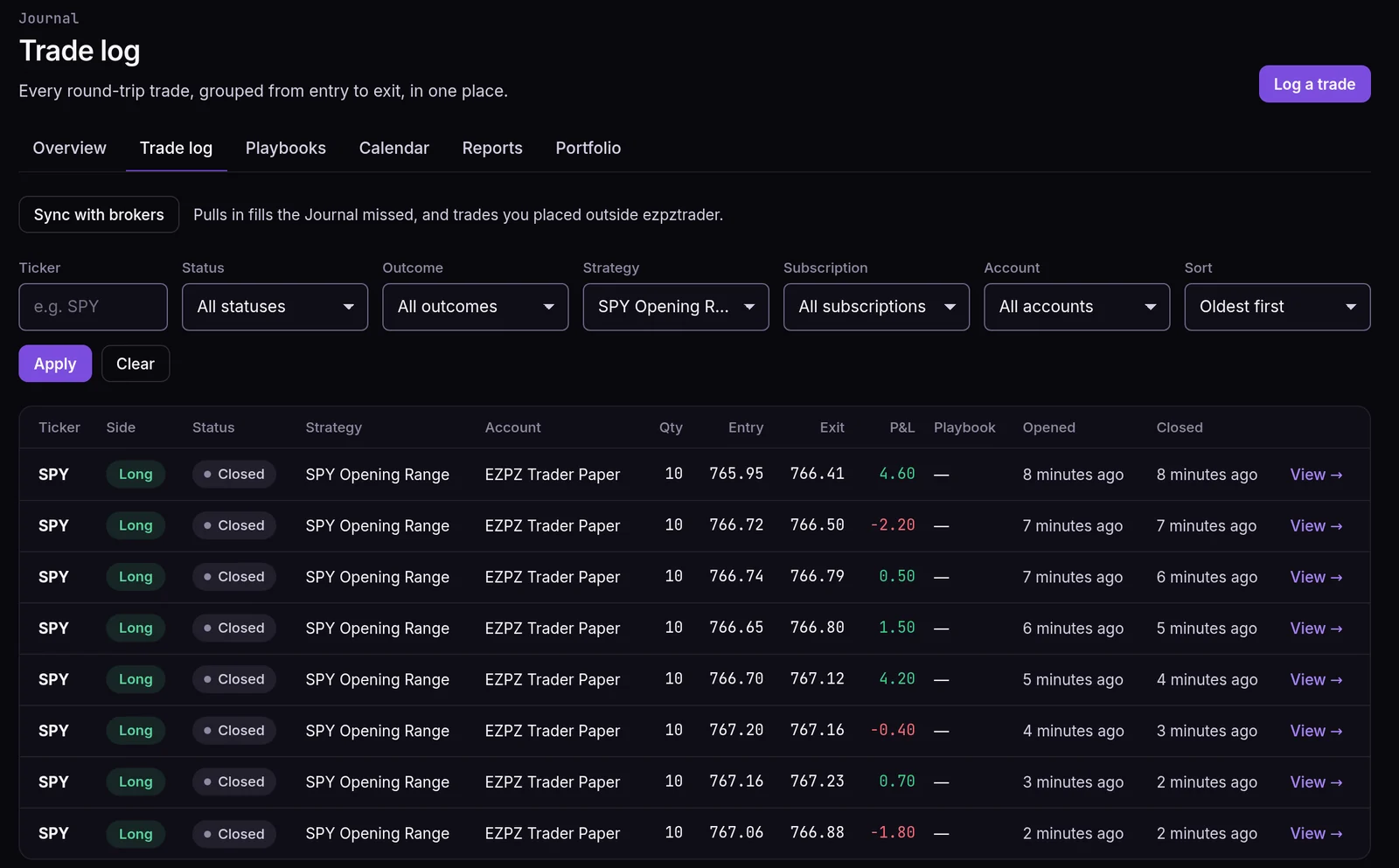
Journal
The Journal groups the entry and the exit into one round trip: SPY, long, 10 shares, entry 765.95, exit 766.41. The P&L is (766.41 − 765.95) × 10 = $4.60. This was a paper account at live market prices.
The four parts, in plain English
- Strategy. One trading idea, usually one TradingView script or alert. It has a name, an asset class (stocks, stock options, index options, futures or crypto) and a webhook URL.
- Webhook URL. The address TradingView sends the alert to. It looks like
https://ezpztrader.com/trading/webhook/<id>/<secret>/. - Subscription. It connects one strategy to one broker account and holds that account's settings: position size, allowed sides, stop loss and take profit, trading window, and Auto or Manual Submit.
- Signal. One message that arrives on the webhook. We log every signal, even when nothing gets traded, along with the reason.
1
webhook URL per strategy, shared by every account that trades it
2
required fields in the alert: ticker and action
8
actions you can send: buy, sell, exit, reverse, add, resize, cancel, breakeven
Step by step
Create a strategy
Open Strategies and add one. Name it after the alert it will receive (for example "SPY Opening Range") and pick its asset class. When you save, the strategy's Webhook panel shows its URL. Copy it with the copy button. Don't retype it: a wrong secret is refused with Incorrect webhook password.
Connect an account
Open Brokers and connect your broker, or use the built-in EZPZ Trader Paper account. For the first run, use paper, either ours or your broker's own paper account.
Subscribe the account to the strategy
Add a subscription and check three settings before the first signal arrives:
- Position Size. How many shares or contracts each signal trades: a fixed quantity, a dollar amount or a percent of equity. The demo subscription uses a fixed 10 shares. With the method set to None, the alert's own
quantityis used, and 1 if it doesn't send one. - Sides. Long only, short only, or both.
- Submit. Manual Submit (the default) holds every order for your approval. Auto Submit sends it straight to the broker.
- Position Size. How many shares or contracts each signal trades: a fixed quantity, a dollar amount or a percent of equity. The demo subscription uses a fixed 10 shares. With the method set to None, the alert's own
Write the alert message
In TradingView, create an alert on your chart or strategy. In the Message box, paste JSON. The smallest valid message is:
{"ticker": "{{ticker}}", "action": "buy"}For a Pine Script strategy, let TradingView fill in the values:
{
  "ticker": "{{ticker}}",
  "action": "{{strategy.order.action}}",
  "sentiment": "{{strategy.market_position}}",
  "quantity": "{{strategy.order.contracts}}",
  "price": "{{close}}"
}
Paste the webhook URL
On the alert's Notifications tab, tick Webhook URL and paste your strategy's URL. TradingView only offers webhooks on its paid plans and asks you to turn on two-factor authentication first.
Fire it and read the log
Let the alert trigger, then open Signals. Each signal shows what arrived, which subscriptions it reached, the orders it placed and, for anything skipped, the reason in plain words. The walkthrough at the top of this page shows one real signal from received to filled.
What each field in the message does
| Field | Required | Example | What it does |
|---|---|---|---|
ticker |
Yes | "SPY" |
The symbol to trade. Options contracts and crypto pairs work too. |
action |
Yes | "buy" |
One of buy, sell, exit, reverse, add, resize, cancel or breakeven. |
sentiment |
No | "flat" |
The position your script expects after this order: long, short or flat. It tells a "sell that closes the long" apart from a "sell that opens a short". |
quantity |
No | "10" |
Used when the subscription lets the signal set the size, which is on by default. |
price |
No | "765.95" |
The entry price for sizing and limit orders. Without it, we use a live quote. |
What the webhook answers
You won't see this answer in TradingView, but the Signals page keeps it for every signal:
- Accepted. The signal was valid and went to the matching subscriptions.
- Accepted, but no subscription to send it to. The JSON was fine, but no enabled subscription could take it, so no trade was created. The Signals page says No enabled subscriptions to fan out to. This usually means no subscription on this strategy is switched on yet.
- Refused (HTTP 400). Something was wrong with the request itself, for example
invalid-password,malformed-json,invalid-action,empty-ticker-nameorunsupported-ticker. Nothing was processed. On the Signals page it shows as Invalid payload with the reason, such as Body isn't valid JSON. - Rate limited (HTTP 429). More than 60 requests reached one strategy within 60 seconds, or more than 500 within an hour.
Before you switch to a live account
- Let the alert fire several times on paper, including at least one exit.
- Check that the sizes on the Signals page match what you expected, in both shares and dollars.
- Subscribe the live account to the same strategy. The alert and the URL stay the same.
- Leave the live subscription on Manual Submit for the first few signals, then switch on Auto Submit once you trust it.
Placing a trade without an alert
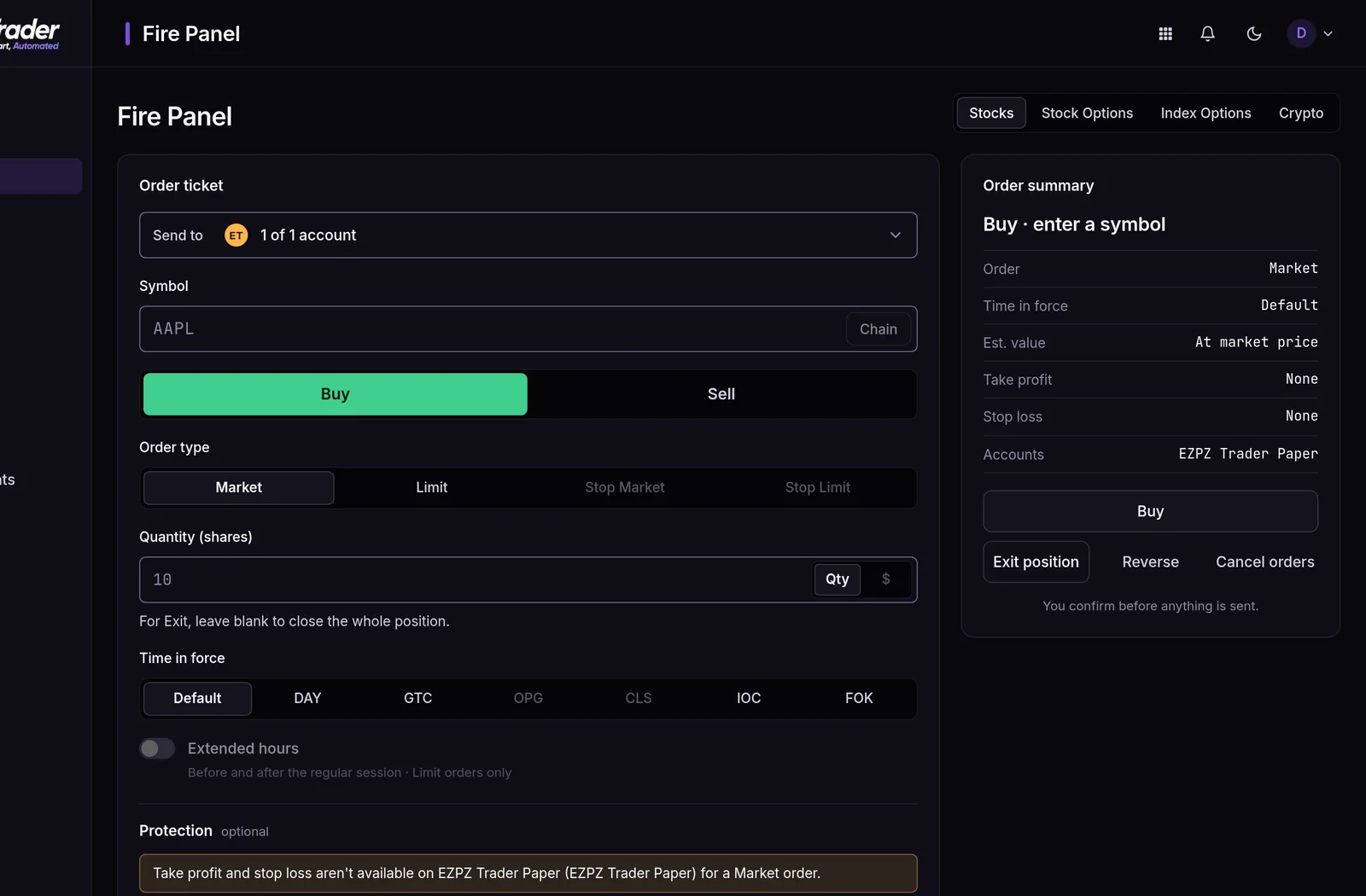
You don't need TradingView to send an order. Fire Panel is an order ticket in the app: pick the accounts, the symbol, Buy or Sell, the order type and the quantity, then confirm. Its orders go through the same pipeline as webhook signals and show up on the Signals page with the source Fire Panel.
Frequently asked questions
Do I need a paid TradingView plan?
TradingView only offers webhook alerts on its paid plans and asks you to turn on two-factor authentication before you can use them. Everything on our side works with any plan that can send a webhook, and so does any other tool that can send an HTTP POST with JSON.
Can several accounts trade the same alert?
Yes. Add one subscription per account. Each subscription has its own size, sides and risk settings, and they all share the strategy's single webhook URL.
What happens if the alert fires while the market is closed?
The signal is queued and sent when the market next opens. Crypto never waits because its market is always open. See how the market-hours queue works.
Why didn't my signal place an order?
Open the signal on the Signals page. Every skipped trade has a reason, such as Already holds this side, Outside trading window or Ticker not allowed, and a suggested fix. Also check whether the subscription is on Manual Submit, because then the order is waiting for your approval.